

HTC Vive Pro
More actions
| HTC Vive Pro | |
|---|---|

| |
| Basic Info | |
| VR/AR | Virtual Reality |
| Type | Head-mounted display |
| Subtype | PC-Powered VR |
| Platform | SteamVR |
| Developer | HTC |
| Release Date | April 2018 (HTC reported retail availability on April 5)[1] |
| Price | US$799 (headset-only launch price)[2] |
| Website | https://www.vive.com/us/support/vive-pro/ |
| Requires | Compatible PC, link box and external base stations |
| Predecessor | HTC Vive |
| Successor | HTC Vive Pro 2 |
| System | |
| Operating System | Windows |
| Display | |
| Display | Dual 3.5-inch AMOLED panels[3] |
| Resolution | 2880 x 1600 combined (1440 x 1600 per eye) |
| Pixel Density | 615 PPI (manufacturer specification)[4] |
| Refresh Rate | 90 Hz |
| Image | |
| Field of View | 110 degrees (manufacturer specification; axis unspecified) |
| Optics | |
| Optics | Fresnel lenses[5] |
| Tracking | |
| Tracking | 6DOF, SteamVR Tracking |
| Rotational Tracking | Gyroscope, Accelerometer |
| Positional Tracking | Lighthouse with Base Station 1.0 or SteamVR Base Station 2.0[6] |
| Tracking Volume | Configuration dependent; up to 10 m x 10 m with four SteamVR Base Stations 2.0[7] |
| Audio | |
| Audio | Removable on-ear headphones; dual integrated microphones |
| Camera | Dual front-facing cameras[8] |
| Connectivity | |
| Connectivity | PC: DisplayPort 1.2 and USB 3.0 or newer through powered link box; headset: USB-C accessory port; Bluetooth[9][10] |
| Device | |
| Sensors | SteamVR tracking sensors, G-sensor, gyroscope, proximity and IPD sensor |
| Input | Tracked motion controllers |
| Cable Length | Approximately 5 m (documented wired setup)[11] |
- See also: HTC Vive
HTC Vive Pro is a PC-powered virtual reality headset introduced by HTC in 2018 as an upgrade to the original Vive system. It uses the SteamVR ecosystem developed by Valve, external tracking base stations and handheld motion controllers. The original Pro has dual OLED displays, integrated headphones and microphones, two front cameras, and a head strap with a rear adjustment dial. It was offered as a headset-only upgrade as well as in packages with tracking hardware.[12][2]
The original Pro is distinct from HTC Vive Pro Eye, which adds integrated eye tracking, and Vive Pro 2, which uses higher-resolution LCD panels. A report based on HTC's response to Road to VR in March 2020 described the original Pro packages being phased out as remaining stock sold through. That sales change did not specify an end date for software or repair support.[13][14][15]
Release and versions
On January 8, 2018, HTC announced the Vive Pro at CES. The announcement described the headset's display, audio and ergonomic changes, but said price and availability would follow. On March 19 HTC opened pre-orders at US$799 for the headset-only package and announced global shipping for April 5. HTC's April 5 blog described the Pro as available for purchase that week through its website and retailers.[12][2][1]
The headset-only package let existing Vive owners retain their original controllers and Base Station 1.0 units. HTC later documented the Full Kit with two VIVE Controllers (2018) and two SteamVR Base Stations 2.0. The two generations of base stations require different setup procedures and cannot be mixed in one tracking installation.[2][16][6]
Version history
| Date | Event | Scope |
|---|---|---|
| January 8, 2018 | CES announcement | Original Vive Pro and a separate wireless accessory announced; final headset price and availability were still pending.[12] |
| March 19, 2018 | Headset-only pre-orders opened | US$799; HTC announced April 5 shipping. This was an upgrade package, not a complete controller/base-station kit.[2] |
| April 5, 2018 | Retail availability | HTC reported availability through its website and Vive retailers that week.[1] |
| May 23, 2019 | Enterprise distribution announcement | HTC listed the Pro VR System and Pro Starter Kit among products distributed through SYNNEX, alongside the separate Pro Eye model.[13] |
| March 9, 2020 | Original Pro packages being phased out | Road to VR, following its inquiry to HTC, reported that Starter Kit, Full Kit and McLaren Limited Edition stock would sell through in favor of Pro Eye packages. It did not establish a universal support-end date.[14] |
Features
| Feature | Function and conditions |
|---|---|
| Room-scale VR | The headset and compatible controllers track position and orientation relative to external base stations. Seated and standing applications are also supported. Space limits depend on the base-station configuration.[17][6][7] |
| Wireless SteamVR Controllers | One controller is normally held in each hand. Original Vive controllers work with 1.0 stations; Controllers (2018) work with either generation.[6] |
| Chaperone | SteamVR displays a boundary grid near the configured play-area limits. The grid's appearance and floor bounds can be adjusted.[18] |
| Front-facing cameras | Camera views can show the physical surroundings on a controller overlay, at the room boundary, or through Room View. They must first be enabled in SteamVR settings.[19] |
| Integrated audio | Removable on-ear headphones and dual microphones provide headset audio and voice input. HTC documents audio modes for hearing foreground or background sounds from the room.[12][20] |
| Phone notifications | A legacy HTC Pro guide documents Bluetooth phone pairing, call and text notifications, calendar reminders and call-back controls. The section below describes that historical integration.[21] |
| Wireless accessory | The separately purchased HTC Vive Wireless Adapter removes the headset's wired PC tether, while retaining a PC for processing and external stations for tracking.[22] |
Hardware
Design and ergonomics
The Pro has a blue housing. Its head strap has a padded rear section, an adjustment dial and a top band. The headphones can move into position over the ears, and the headset cable passes through a rear clip. HTC's diagrams identify volume controls and a microphone mute button behind the earphones. The face cushion attaches with hook-and-loop strips and can be removed for cleaning or replacement.[23][8][24][4]
The interpupillary distance knob adjusts the separation of the lenses. HTC recommends using the wearer's measured IPD as a guide; the software displays the current lens spacing as the knob turns. Eye relief is adjusted by holding the lens-distance button and sliding the visor. This makes room for glasses or eyelashes, though moving the lenses farther from the eyes reduces the visible field of view. The Pro does not use the original Vive's pull-out side-knob procedure for this adjustment.[25][26]
Display and optics
The Vive Pro has two 3.5-inch AMOLED panels with 1440 x 1600 pixels per eye and a 90 Hz refresh rate. HTC lists 2880 x 1600 as the combined resolution and advertises a 78% increase in pixel count over the original Vive. Its specification gives a 110-degree field of view without identifying an axis or measurement method. HTC also advertises 615 PPI; this is panel pixel density, rather than a measurement of angular detail through the lenses.[3][12][4]
The lenses are Fresnel lenses. In his January 2018 CES hands-on, Ben Lang reported reduced visible pixels and screen-door effect, while noting remaining aliasing and mura. His report states that HTC confirmed the Fresnel design and describes the expected god-ray artifacts in high-contrast scenes. These were impressions of the demonstrated headset; the report explicitly says its roughly 20-minute strap comparison could not establish comfort during sessions of an hour or more.[5]
Front-facing cameras
Dual cameras are located on the front of the HMD. HTC documents enabling the cameras under SteamVR's Camera settings and restarting SteamVR before selecting the desired view. With Enable Room View active, double-pressing a controller's System button shows the surroundings and repeating the action returns to VR. Show Camera at Room Edge displays the surroundings near the play-area boundary. These camera views are separate from the base-station tracking system.[8][19]
Tracking
Tracking uses Lighthouse signals detected by sensors on the headset and controllers, together with the headset's inertial sensors. HTC lists a G-sensor, gyroscope, proximity sensor and IPD sensor for the original Pro. The cameras are not substitutes for external base stations. The tracking system provides six degrees of freedom: position as well as orientation.[3][6][27]
The Pro accepts Base Station 1.0 or SteamVR Base Station 2.0, provided each installation uses stations of the same generation. Compatibility also depends on the tracked device. Original Vive controllers cannot be used with 2.0 stations, while Controllers (2018) support both generations. HTC's Pro specifications describe up to 5 m x 5 m with two 2.0 stations and up to 10 m x 10 m with four. These are manufacturer configuration limits, not guarantees of positional accuracy throughout the area.[6][4][7]
HTC's generic recommended-space FAQ instead lists a 7 m x 7 m maximum. Its legacy Pro Office page says the tracked space at launch was 7 m x 7 m, with 10 m x 10 m capability through four 2.0 stations and a later software update. These documents describe their limits differently; the configuration-specific Full Kit and four-station guidance is stated separately above.[28][3]
Voice and audio
Vive Pro has built-in dual microphones and removable on-ear headphones. HTC's announcement describes microphone noise cancellation and a built-in headphone amplifier. The headset supports external compatible USB-C earphones. Compatible 3.5 mm earphones need an appropriate USB-C-to-3.5 mm audio adapter; HTC specifically cautions that its smartphone USB-C-to-3.5 mm adapter does not work with the Pro.[12][29][30]
HTC's documented Default audio mode plays VR sound only. Conversational mode admits foreground room sound, while Ambient mode admits background room sound. SteamVR's Audio mirroring setting can duplicate headset audio to another pair of headphones or computer speakers. These are documented software options rather than measurements of the noise-cancellation system.[20][31]
Cables and ports
The wired setup uses a powered link box between the headset and PC. Separate DisplayPort, USB 3.0 and power connections enter the box; the headset connects through its own cable. The DisplayPort connection goes to the PC's graphics card, rather than a motherboard display socket. The link box has a power button. HTC specifies DisplayPort 1.2 and USB 3.0 or newer on the computer.[9][32]
A USB-C accessory port is behind the headset's compartment cover. HTC documents removing the face cushion, opening the cover, connecting a compatible USB-C device, then replacing the cover and cushion. This port is distinct from the PC's USB connection to the link box.[10]
In the box
Contents depend on the package. The Pro HMD user guide lists the headset-only package separately from the Full Kit support page.[33][16]
| Package/component | Documented contents |
|---|---|
| Headset-only upgrade | Headset with attached cable and face cushion; cleaning cloth; two earphone hole caps; documentation.[33] |
| Link box with headset-only upgrade | Power adapter, DisplayPort cable, USB 3.0 cable and mounting pad.[33] |
| Full Kit additions | Two VIVE Controllers (2018) with lanyards, two controller power adapters and two micro-USB cables; two SteamVR Base Stations 2.0 with power adapters; mounting hardware.[16] |
Specifications
| Part | Specification | Qualification |
|---|---|---|
| Display | Dual AMOLED, 3.5-inch diagonal panels | Original Pro, not the LCD-based Pro 2.[3] |
| Resolution | 1440 x 1600 per eye; 2880 x 1600 combined | Native panel specification.[3] |
| Pixel density | 615 PPI | HTC's advertised panel value.[4] |
| Refresh rate | 90 Hz | Original Pro specification.[3] |
| Field of view | 110 degrees | Manufacturer value; axis and measurement method unspecified.[4] |
| Optics | Fresnel lenses | HTC-confirmed design in contemporary hands-on reporting.[5] |
| IPD and eye relief | Mechanical lens-spacing adjustment; button-operated sliding visor | Numerical IPD limits are not supplied by the cited Pro adjustment documentation.[25][26] |
| Rotational tracking / Positional tracking | Six degrees of freedom with external Lighthouse base stations | Same-generation 1.0 or 2.0 station sets; compatible controllers required.[6] |
| Sensors | G-sensor, gyroscope, proximity and IPD sensors; SteamVR Tracking | HTC's original Pro sensor list does not list a magnetometer.[3] |
| Tracking volume | Up to 5 m x 5 m with two 2.0 stations; up to 10 m x 10 m with four | Manufacturer configuration limits; see the separate 1.0 setup below.[4][7] |
| Connectivity | Powered link box, DisplayPort 1.2 and USB 3.0 or newer; Bluetooth; headset USB-C accessory port | Computer-side and headset-side connectors have different roles.[32][9][10][3] |
| Audio and camera | Removable on-ear headphones, dual integrated microphones, two front cameras | Camera activation and audio modes depend on software settings.[12][29][19] |
| Cable reach | Approximately 5 m in HTC's documented wired setup | Cable routing constrains movement even where tracking coverage is larger.[11] |
System requirements
Minimum and recommended configurations
HTC's model-specific support page lists the following requirements. These are published hardware floors and recommendations; they do not establish that every VR application will meet its frame-rate target on that configuration.[32]
| Component | Minimum in HTC's support table | Recommended in HTC's support table |
|---|---|---|
| CPU | Intel Core i5-4590 / AMD FX 8350 equivalent or better | Same |
| GPU | NVIDIA GeForce GTX 970 / AMD Radeon R9 290 equivalent or better | NVIDIA GeForce GTX 1070 / Quadro P5000, or AMD Radeon Vega 56 equivalent or better |
| RAM | 4 GB or more | 4 GB or more |
| Video output | DisplayPort 1.2 or newer | DisplayPort 1.2 or newer |
| USB | One USB 3.0 or newer port | One USB 3.0 or newer port |
| Operating system | Windows 7 SP1, Windows 8.1 or later, Windows 10 | Windows 10 or Windows 11 |
The entries above reproduce the support page checked on October 14, 2026. Its Windows 7 and 8.1 entries are historical compatibility information: Valve's SteamVR store page says the Steam Client supports only Windows 10 and later from January 1, 2024. HTC's New Zealand Full Kit page lists a different minimum GPU pair, GTX 1060 / Radeon RX 480. The regional product listing and model support table are therefore not identical.[32][34][4]
HTC's legacy instructions require additional dual-camera drivers on Windows 7 and recommend Windows 10 for the camera's see-through feature. A laptop also needs the appropriate display connection and graphics capabilities; a connector adapter alone does not establish compatibility.[32][35]
SteamVR Performance Test
SteamVR Performance Test is Valve's 2016 rendering benchmark. It uses a two-minute sequence from the Aperture Robot Repair demonstration to assess rendering power, a 90 fps target, and whether the bottleneck lies with the CPU or GPU. It does not verify the Pro's DisplayPort/USB connections, camera drivers, or the demands of every application. The Steam listing now states that the test is no longer available on the Steam store.[36]
Play area requirements
- See also: #Play area setup
The play area sets the virtual boundaries of the HTC Vive Pro. The interaction with VR objects happens within the play area. HTC documents room-scale, seated and standing configurations. Furniture and other obstacles should be outside the traced floor area; the PC should be near the play area, with power available for the base stations. The wired cable reaches approximately 5 m in the documented setup.[17][11]
Room-scale VR requirements
| Configuration | Documented space | Conditions |
|---|---|---|
| Room-scale minimum | 2 m x 1.5 m | HTC's Pro room-setup minimum.[17] |
| Base Station 1.0 pair | Up to a 5 m diagonal, for example about 3.5 m x 3.5 m | HTC's Pro HMD guide recommends at most 5 m between the two first-generation stations. Cable reach remains a separate constraint.[33] |
| Two SteamVR Base Stations 2.0 | Up to 5 m x 5 m | As specified for the Pro Full Kit.[4] |
| Four SteamVR Base Stations 2.0 | Up to 10 m x 10 m | Additional stations and suitable placement are required.[7] |
Standing/seated VR requirements
HTC states no minimum room dimensions for seated or standing experiences. The headset and controllers still need tracking coverage, and the physical area must allow the movements required by the application.[17]
Setup tutorial
The following procedures summarize HTC's Pro documentation. Its menu labels describe the documented software interface and can differ from later SteamVR releases.[37]
HMD setup
Putting the HMD on
- Remove the protective lens covers before use. Loosen the rear adjustment dial and release the top band's hook-and-loop fastener.
- Place the headset over the eyes and move the strap around the back of the head.
- Tighten the rear dial until the fit is secure, then fasten the top band and position the earphones.
- Route the headset cable through the rear clip and down the back. Loosen the dial before removing the headset.[23]
Adjusting the fit and IPD
Use measured IPD to guide the lens spacing. Turning the IPD knob clockwise increases the distance between the lenses; counterclockwise decreases it. HTC also documents adjusting while viewing text or lines at the center of the display, then repositioning the headset if one eye is clearer than the other.[25]
Adjusting eye relief
Press and hold the lens-distance button, then slide the visor closer to or farther from the face. HTC advises increasing the clearance only as necessary for glasses or eyelashes, since closer lenses provide a wider visible field. Glasses should not touch or scratch the headset lenses.[26]
Replacing the face cushion
Peel the cushion away from both ends to remove it. For replacement, insert its tab into the headset slot and align the hook-and-loop strips. HTC documents this for removal and cleaning; it does not prescribe a thin-cushion substitution for every wearer.[24]
Link box setup
- Connect the DisplayPort cable, USB 3.0 cable and power-adapter cable to their respective link-box sockets.
- Connect power to an outlet, USB to the computer, and DisplayPort to the computer's graphics card.
- Insert the headset cable with its triangle mark aligned with the corresponding mark on the link box.
- Press the link-box power button. HTC supplies a mounting pad to secure the box in position.[9]
Controllers setup
| Operation | Documented procedure |
|---|---|
| Charging | Use the supplied power adapters and micro-USB cables. Check charge through the in-headset Dashboard or SteamVR. With a fully charged controller connected, its light is green when on and white when off.[38] |
| Power | Briefly press System to turn a controller on. Hold System until a beep to turn it off. Controllers also power down when SteamVR closes or after an idle period.[39] |
| Pairing | Turn on the controller, open SteamVR, and select Devices, then Pair Controller. The light blinks blue while pairing and becomes solid green on success. HTC's HMD guide also describes automatic pairing on the first power-on.[40][33] |
| Firmware | Select the controller's firmware update in SteamVR and connect it to the PC by micro-USB, one controller at a time. Leave the cable connected until the update finishes.[41] |
Base stations setup
Placing and mounting the stations
Mount the stations securely outside the play area and face them toward its center, usually from opposite corners near power outlets. HTC permits stable tripods, light stands, cargo poles or bookcases as alternatives to wall mounts. Avoid supports that vibrate or can be knocked out of position. After changing station positions or angles, run room setup again.[42]
For the mounting kit, mark and fasten the wall mounts. Screw the station onto the threaded ball joint only far enough to hold it securely at the desired orientation, then tighten the wingnut. Hold the station while loosening the clamping ring to adjust its angle; tighten the ring after aiming it and connect its supplied power cable.[43]
Base Station 1.0 settings
HTC's first-generation station guidance recommends mounting above head height, ideally over 2 m, with a 30-45 degree downward angle and no more than 5 m between the pair. It describes a 120-degree field of view.[44] Without a sync cable, set channels b and c; with a sync cable, use A and b. The Pro HMD guide also describes using a sync cable when an obstruction prevents the stations from seeing each other. These settings belong to 1.0 hardware.[45][33]
SteamVR Base Station 2.0 settings
HTC's 2.0 guidance specifies 150-degree horizontal and 110-degree vertical coverage, ideally mounting above 2 m with a 25-35 degree angle. Tracked devices should be at least 0.5 m from a station. For additional stations, SteamVR's Base Station Settings can scan the installation and assign unused numerical channels, either manually or through Automatic Configuration. The 1.0 A/b/c sync procedure does not apply to these stations.[46][47]
Firmware updates
HTC documents updating base-station firmware through SteamVR with Bluetooth enabled, installing the link box's Bluetooth driver where prompted. Select the device update and follow its instructions without interrupting power.[48]
For first-generation stations, HTC also documents a wired procedure: disconnect power, unmount the unit, connect it to the PC by micro-USB, then reconnect power while holding the Channel button. SteamVR performs the selected update after detection. Do not unplug USB or power before completion. This is a 1.0 procedure, not a generic method for 2.0 stations.[49]
Play area setup
- See also: #Play area requirements
HTC's setup installs the required Vive and SteamVR software, connects the hardware, and defines either a standing-only or room-scale area. Choose the corresponding Room Setup option and follow its calibration prompts. The room-scale minimum is 2 m x 1.5 m. Clear the floor before tracing bounds and exclude space occupied by furniture. Re-run room setup when the system moves to another room or the station positions change.[37][17][11][33]
Keep the headset lenses pointed away from direct sunlight during storage, since sunlight through the optics can damage the display. HTC also advises protecting the lenses from sharp objects and keeping the supplied protective covers for storage or shipping.[50]
Software setup and controls
HTC directs Pro users to its Pro setup download and through the hardware and room-calibration prompts. The headset relies on the PC software; adding a wireless adapter does not turn it into a standalone headset.[37][22]
The System button on either controller opens the Dashboard, which provides app launch and exit, audio volume and microphone access, headset background and Chaperone settings. The Chaperone grid can change color, transparency and style, and its floor bounds can remain visible. SteamVR's Audio settings provide mirroring to another audio device; its Camera settings control the front-camera views.[51][18][31][19]
Valve's Desktop Game Theater was introduced in the March 28, 2016 Steam Client update to display conventional games on a virtual large screen. That is a flat-game presentation within VR, rather than native VR interaction added to those games. Valve's current SteamVR page also describes PC desktop interaction through the Dashboard.[52][34]
Input devices
SteamVR Controllers are handheld input devices tracked by the same Lighthouse installation as the HMD. The Pro Full Kit uses Controllers (2018), whose controls include a multifunction trackpad, grip buttons, dual-stage trigger, System button and Menu button. HTC lists approximately six hours of use per charge for that controller model. Other SteamVR input devices require their own compatibility checks; the headset's use of SteamVR does not establish that every Steam peripheral is a tracked VR controller.[4][6]
Accessories
| Accessory | Compatibility and purpose |
|---|---|
| Base Station 1.0 | Supports the Pro with original Vive controllers or Controllers (2018). A 1.0 installation cannot include 2.0 stations.[6] |
| SteamVR Base Station 2.0 | Supports the Pro and Controllers (2018), but not original Vive controllers. Additional stations can expand tracking coverage.[6][7] |
| VIVE Controllers (2018) | Compatible tracked input included in the Pro Full Kit; micro-USB charging.[16][38] |
| HTC Vive Wireless Adapter | A separately purchased PC wireless system; the original Pro requires the matching connection cable, attachment and padding.[22] |
| External earphones | Compatible USB-C earphones, or compatible 3.5 mm earphones with a suitable USB-C audio adapter, replace the removable built-in headphones.[29][30] |
Wireless adapter
HTC's August 21, 2018 announcement described an Intel WiGig PCIe card, PC transmitter, headset adapter, DisplayLink XR codec and QC 3.0 power bank. It announced September 5 pre-orders and September 24 availability, with a US$299 adapter and an additional US$60 Pro compatibility pack. The pack contained the Pro cable, attachment and padding. Those are historical prices and scheduled dates.[22]
The wireless system needs a desktop computer with an available PCIe slot; it does not use the headset's front cameras for tracking. HTC lists its own wireless CPU, GPU and operating-system requirements separately and notes that applications can require more. The transmitter's documented range and the headset's base-station coverage are separate constraints.[53][22]
Apps
HTC Vive Apps lists applications associated with the Vive platform. Valve's The Lab is a free collection of VR demonstrations on Steam. SteamVR provides the runtime and Dashboard, while application hardware and software requirements still apply.[54][34]
Connecting to your phone
HTC's legacy 70-page Pro HMD guide describes receiving phone calls, text messages and calendar reminders in VR through the VIVE phone app and Bluetooth pairing. Its setup uses the PC's VIVEPORT app and the phone app, with the phone made discoverable before pairing. The guide explicitly identifies the headset as VIVE Pro. These are historical software instructions; present-day app availability and operation have not been verified.[21]
In the documented interface, pressing a controller's System button opens an incoming notification. The VIVE tab's Notifications panel can show missed calls, texts and upcoming calendar events, and lets the user call back a contact. Text-message replies and customized quick replies are documented for Android users. The guide supports one paired phone at a time and describes unpairing the current phone before changing to another.[21]
Research and measured behavior
Tracking precision and accuracy
Peter Bauer, Werner Lienhart and Samuel Jost's 2021 laboratory study evaluated the Pro tracking system with SteamVR Plugin 2.0 and a custom Unity application. Their static tests used one or two Lighthouse 2.0 stations, a Pro HMD, controllers and 2018 Vive Trackers, with geodetic reference equipment. In a one-station test, 500 positions at each of three locations gave HMD standard deviations of 0.1 mm perpendicular to the station and 0.3 mm toward it. These figures describe repeatability in that setup, not absolute positioning accuracy.[27]
The paper's detailed subsequent tests focused on the Tracker. They found systematic effects, including a tilted reference plane and position changes associated with device orientation and the tracking system's station hierarchy. Deviations on a reference rail reached 40 mm despite repeatability within a few millimeters. The work therefore does not support a universal submillimeter-accuracy claim for all devices, positions or movement, and did not measure motion-to-photon latency.[27]
Display persistence and motion blur
Chumin Zhao, Andrea S Kim, Ryan Beams and Aldo Badano's 2022 optical-bench study compared Vive, Vive Pro and Vive Pro 2 using a photodetector, oscilloscope and cameras. They measured the Pro at 90 Hz with a 17% emission duty cycle, approximately 1.9 ms per frame, and roughly 0.3 ms rise and 0.5 ms fall times. This is display emission behavior, not whole-system latency.[15]
For a central single-pixel line on the Pro, static line-spread full width at half maximum was about 0.10 degrees; it increased to about 0.16 degrees at a target speed of 39 degrees per second under their smooth-pursuit analysis. The study assumed ideal pursuit, excluded sensing, tracking and rendering latency, and did not evaluate peripheral or binocular perceptual performance. Its optical measurements do not establish clinical outcomes or every user's perceived sharpness.[15]
Tracking volume
- See also: Tracking volume
The legacy Vive illustration below shows a corner tracking arrangement. HTC's first-generation station guidance describes 120-degree coverage; the Pro supports those stations, but that figure differs from the 2.0 station specifications and the headset's field of view.[44][6][46]

Images

Gallery
-
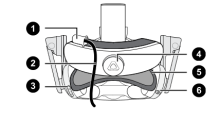 Rear-view diagram of HTC Vive Pro.
 -
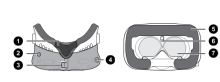 Bottom and interior diagram of HTC Vive Pro.


References
- ↑ 1.0 1.1 1.2 VIVE Team (2018-04-05). "Should you buy Vive Pro? See what the critics had to say.". VIVE Blog. https://blog.vive.com/us/should-you-buy-the-vive-pro/. Retrieved 2026-10-14.
- ↑ 2.0 2.1 2.2 2.3 2.4 "HTC VIVE Announces Price of Vive Pro HMD at $799, Pre-orders Start Today; Price of Vive Reduced to $499". HTC VIVE Newsroom. 2018-03-19. https://www.vive.com/us/newsroom/2018-03-19-2/. Retrieved 2026-10-14.
- ↑ 3.0 3.1 3.2 3.3 3.4 3.5 3.6 3.7 3.8 "VIVE Pro Office". VIVE Business. https://business.vive.com/sea/product/vive-pro/. Retrieved 2026-10-14.
- ↑ 4.00 4.01 4.02 4.03 4.04 4.05 4.06 4.07 4.08 4.09 "VIVE Pro Full Kit". HTC VIVE. https://www.vive.com/nz/product/vive-pro-full-kit/. Retrieved 2026-10-14.
- ↑ 5.0 5.1 5.2 Ben Lang (2018-01-09). "Hands-on: The Vive Pro is Much More Than an Improved Screen". Road to VR. https://roadtovr.com/ces-2018-vive-pro-hands-on-much-more-than-an-improved-screen/. Retrieved 2026-10-14.
- ↑ 6.00 6.01 6.02 6.03 6.04 6.05 6.06 6.07 6.08 6.09 6.10 "Which VIVE hardware is compatible with my base stations?". HTC VIVE Support. https://www.vive.com/us/support/vive-pro/category_howto/which-vive-hardware-are-compatible-with-base-stations.html. Retrieved 2026-10-14.
- ↑ 7.0 7.1 7.2 7.3 7.4 7.5 "What are the minimum and maximum play area when using more than two SteamVR Base Stations 2.0?". HTC VIVE Support. https://www.vive.com/us/support/vive-pro/category_howto/minimum-and-maximum-play-area-size-for-more-than-2-base-stations.html. Retrieved 2026-10-14.
- ↑ 8.0 8.1 8.2 "About the VIVE Pro HMD". HTC VIVE Support. https://www.vive.com/us/support/vive-pro/category_howto/about-the-headset.html. Retrieved 2026-10-14.
- ↑ 9.0 9.1 9.2 9.3 "Connecting the headset to your computer". HTC VIVE Support. https://www.vive.com/us/support/vive-pro/category_howto/connecting-the-headset-to-your-computer.html. Retrieved 2026-10-14.
- ↑ 10.0 10.1 10.2 "Connecting a USB device to the VIVE Pro HMD". HTC VIVE Support. https://www.vive.com/us/support/vive-pro/category_howto/connecting-a-usb-device.html. Retrieved 2026-10-14.
- ↑ 11.0 11.1 11.2 11.3 "Choosing the play area". HTC VIVE Support. https://www.vive.com/us/support/vive-pro/category_howto/choosing-your-play-area.html. Retrieved 2026-10-14.
- ↑ 12.0 12.1 12.2 12.3 12.4 12.5 12.6 "HTC VIVE Raises the Bar for Premium VR with New Vive Pro Upgrade and Vive Wireless Adaptor". HTC VIVE Newsroom. 2018-01-08. https://www.vive.com/us/newsroom/2018-01-08-2/. Retrieved 2026-10-14.
- ↑ 13.0 13.1 "HTC VIVE and SYNNEX Corporation Deliver Leading Virtual Reality Offering for Enterprise Customers". HTC VIVE Newsroom. 2019-05-23. https://www.vive.com/us/newsroom/2019-05-23/. Retrieved 2026-10-14.
- ↑ 14.0 14.1 Ben Lang (2020-03-09). "HTC Discontinuing Vive Pro and Vive Focus in Favor of Newer Iterations". Road to VR. https://www.roadtovr.com/htc-discontinuing-vive-pro-and-vive-focus-in-favor-of-newer-iterations/. Retrieved 2026-10-14.
- ↑ 15.0 15.1 15.2 Chumin Zhao; Andrea S Kim; Ryan Beams; Aldo Badano (2022-11-24). "Spatiotemporal image quality of virtual reality head mounted displays". Scientific Reports 12: 20235. doi:10.1038/s41598-022-24345-9. Retrieved 2026-10-14.
- ↑ 16.0 16.1 16.2 16.3 "What's inside the box?". HTC VIVE Support. https://www.vive.com/us/support/vive-pro/category_howto/inside-the-box.html. Retrieved 2026-10-14.
- ↑ 17.0 17.1 17.2 17.3 17.4 "Planning your play area". HTC VIVE Support. https://www.vive.com/us/support/vive-pro/category_howto/planning-your-play-area.html. Retrieved 2026-10-14.
- ↑ 18.0 18.1 "Changing the Chaperone settings". HTC VIVE Support. https://www.vive.com/us/support/vive-pro/category_howto/changing-the-chaperone-settings.html. Retrieved 2026-10-14.
- ↑ 19.0 19.1 19.2 19.3 "Activating the dual camera". HTC VIVE Support. https://www.vive.com/us/support/vive-pro/category_howto/activating-the-dual-camera.html. Retrieved 2026-10-14.
- ↑ 20.0 20.1 "What are the audio settings?". HTC VIVE Support. https://www.vive.com/us/support/vive-pro/category_howto/what-are-audio-settings.html. Retrieved 2026-10-14.
- ↑ 21.0 21.1 21.2 "VIVE Pro HMD User guide". HTC VIVE Developer. https://developer.vive.com/documents/719/VIVE_Pro_HMD_User_Guide.pdf. Retrieved 2026-10-14.
- ↑ 22.0 22.1 22.2 22.3 22.4 VIVE Team (2018-08-21). "HTC Vive Cuts the Cable With Debut of Vive Wireless Adapter". VIVE Blog. https://blog.vive.com/us/htc-vive-cuts-cable-debut-vive-wireless-adapter/. Retrieved 2026-10-14.
- ↑ 23.0 23.1 "Putting on the VIVE Pro HMD". HTC VIVE Support. https://www.vive.com/us/support/vive-pro/category_howto/putting-the-headset-on.html. Retrieved 2026-10-14.
- ↑ 24.0 24.1 "Replacing the face cushion". HTC VIVE Support. https://www.vive.com/us/support/vive-pro/category_howto/replacing-the-face-cushion.html. Retrieved 2026-10-14.
- ↑ 25.0 25.1 25.2 "Adjusting the IPD on the headset". HTC VIVE Support. https://www.vive.com/us/support/vive-pro/category_howto/adjusting-the-ipd-on-the-headset.html. Retrieved 2026-10-14.
- ↑ 26.0 26.1 26.2 "Adjusting the lens distance on the headset". HTC VIVE Support. https://www.vive.com/us/support/vive-pro/category_howto/adjusting-the-lens-distance.html. Retrieved 2026-10-14.
- ↑ 27.0 27.1 27.2 Peter Bauer; Werner Lienhart; Samuel Jost (2021-02-25). "Accuracy Investigation of the Pose Determination of a VR System". Sensors 21 (5): 1622. doi:10.3390/s21051622. Retrieved 2026-10-14.
- ↑ "What is the recommended space for the play area?". HTC VIVE Support. https://www.vive.com/us/support/vive-pro/category_howto/what-is-the-recommended-space-for-play-area.html. Retrieved 2026-10-14.
- ↑ 29.0 29.1 29.2 "Replacing the headset earphones". HTC VIVE Support. https://www.vive.com/us/support/vive-pro/category_howto/replacing-the-headset-earphones.html. Retrieved 2026-10-14.
- ↑ 30.0 30.1 "Can I use the USB Type-C earphones that came with my HTC phone?". HTC VIVE Support. https://www.vive.com/us/support/vive-pro/category_howto/can-type-c-usb-earphones-from-htc-phone-be-used.html. Retrieved 2026-10-14.
- ↑ 31.0 31.1 "Is there a way to also hear from the computer what's in VR?". HTC VIVE Support. https://www.vive.com/us/support/vive-pro/category_howto/hear-from-pc-the-audio-on-vr.html. Retrieved 2026-10-14.
- ↑ 32.0 32.1 32.2 32.3 32.4 "What are the system requirements?". HTC VIVE Support. https://www.vive.com/us/support/vive-pro/category_howto/what-are-the-system-requirements.html. Retrieved 2026-10-14.
- ↑ 33.0 33.1 33.2 33.3 33.4 33.5 33.6 "VIVE Pro HMD User Guide". HTC VIVE. https://dl4.htc.com/Web_materials/Manual/Vive_HMD/User_Guide/VIVE_Pro_HMD_User_Guide.pdf. Retrieved 2026-10-14.
- ↑ 34.0 34.1 34.2 Valve. "SteamVR". Steam. https://store.steampowered.com/app/250820/SteamVR/. Retrieved 2026-10-14.
- ↑ "Can I use a laptop with VIVE Pro?". HTC VIVE Support. https://www.vive.com/us/support/vive-pro/category_howto/can-i-use-a-laptop-with-vive.html. Retrieved 2026-10-14.
- ↑ Valve. "SteamVR Performance Test". Steam. https://store.steampowered.com/app/323910/SteamVR_Performance_Test/. Retrieved 2026-10-14.
- ↑ 37.0 37.1 37.2 "Setting up VIVE Pro for the first time". HTC VIVE Support. https://www.vive.com/us/support/vive-pro/category_howto/setting-up-for-the-first-time.html. Retrieved 2026-10-14.
- ↑ 38.0 38.1 "Charging the controllers". HTC VIVE Support. https://www.vive.com/us/support/vive-pro/category_howto/charging-the-controllers.html. Retrieved 2026-10-14.
- ↑ "Turning the controllers on or off". HTC VIVE Support. https://www.vive.com/us/support/vive-pro/category_howto/turning-the-controllers-on-or-off.html. Retrieved 2026-10-14.
- ↑ "Pairing the controllers with the headset". HTC VIVE Support. https://www.vive.com/us/support/vive-pro/category_howto/pairing-the-controllers-with-the-headset.html. Retrieved 2026-10-14.
- ↑ "Updating controller firmware". HTC VIVE Support. https://www.vive.com/us/support/vive-pro/category_howto/updating-the-controller-firmware.html. Retrieved 2026-10-14.
- ↑ "Installing SteamVR Base Station 2.0". HTC VIVE Support. https://www.vive.com/us/support/vive-pro/category_howto/installing-the-base-stations.html. Retrieved 2026-10-14.
- ↑ "Using the mounting kit". HTC VIVE Support. https://www.vive.com/us/support/vive-pro/category_howto/using-the-mounting-kit.html. Retrieved 2026-10-14.
- ↑ 44.0 44.1 "Tips for setting up the base stations". HTC VIVE Support. https://www.vive.com/uk/support/vive/category_howto/tips-for-setting-up-the-base-stations.html. Retrieved 2026-10-14.
- ↑ "Installing the base stations". HTC VIVE Support. https://www.vive.com/uk/support/vive/category_howto/installing-the-base-stations.html. Retrieved 2026-10-14.
- ↑ 46.0 46.1 "Tips for setting up SteamVR Base Station 2.0". HTC VIVE Support. https://www.vive.com/us/support/vive-pro/category_howto/tips-for-setting-up-the-base-stations.html. Retrieved 2026-10-14.
- ↑ "Configuring the base station channels". HTC VIVE Support. https://www.vive.com/us/support/vive-pro/category_howto/configuring-the-base-station-channels.html. Retrieved 2026-10-14.
- ↑ "Updating base station firmware via Bluetooth". HTC VIVE Support. https://www.vive.com/us/support/vive-pro/category_howto/updating-the-base-stations-via-bluetooth.html. Retrieved 2026-10-14.
- ↑ "Updating base station firmware via cable connection". HTC VIVE Support. https://www.vive.com/au/support/vive/category_howto/updating-the-base-stations-via-cable-connection.html. Retrieved 2026-10-14.
- ↑ "Caring for your VIVE Pro". HTC VIVE Support. https://www.vive.com/us/support/vive-pro/category_howto/caring-for-your-vive.html. Retrieved 2026-10-14.
- ↑ "System Dashboard". HTC VIVE Support. https://www.vive.com/us/support/vive-pro/category_howto/system-dashboard.html. Retrieved 2026-10-14.
- ↑ Valve (2016-03-28). "Steam Client Update Released (28 March 2016)". Steam. https://store.steampowered.com/oldnews/?enddate=1472713200&feed=steam_client. Retrieved 2026-10-14.
- ↑ "System requirements (VIVE Wireless Adapter)". HTC VIVE Support. https://www.vive.com/us/support/wireless-adapter/category_howto/wireless-adapter-full-pack-system-requirements.html. Retrieved 2026-10-14.
- ↑ Valve. "The Lab". Steam. https://store.steampowered.com/app/450390/The_Lab/. Retrieved 2026-10-14.